Updated: Nov 3, 2025
Exporting digital certificates is essential for maintaining security and ensuring smooth operations in various applications. This guide provides clear instructions for exporting certificates in both Windows 11 and macOS.
Exporting a Digital Certificate in Windows 11
To export a digital certificate in Windows 11, users typically utilize the Certificate Management Console (certmgr.msc). This process allows for backing up certificates securely. Below is a detailed step-by-step guide, complete with visual examples.
Step-by-Step Guide for Windows 11
Open Certificate Management Console:
Click the Start menu, type "certmgr.msc", and press Enter.
In the console tree, navigate to Certificates - Current User (or Computer) > Personal > Certificates.
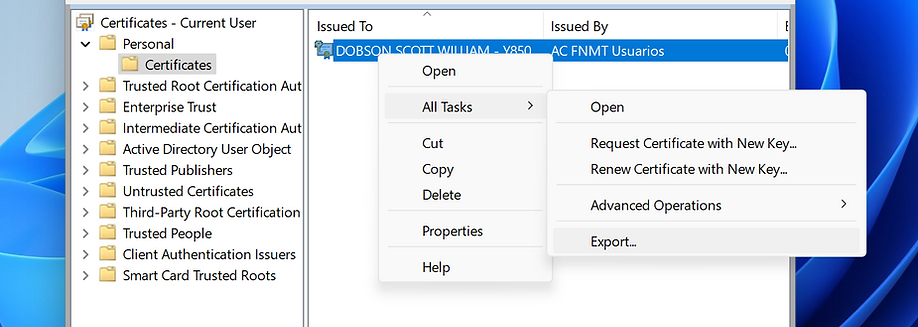
Right-click the certificate you want to export, and select "All Tasks" > "Export".
The Certificate Export Wizard will open.
Export Wizard Steps:
Welcome Screen: Click Next to proceed.
Export Private Key: Choose "Yes, export the private key" and click Next.
File Format: Select "Personal Information Exchange - PKCS#12 (.PFX)" and click Next.
Include Certificates: If desired, check "Include all certificates in the certification path if possible" and "Export all extended properties".
Password (Optional): If you want to protect the certificate with a password, check "Password" and enter a password, then click Next.
File Location: Click Browse to choose a location on your computer to save the exported file (e.g., a .pfx file).
Summary: Review the settings and click Finish.
You'll receive a confirmation message indicating that the export was successful.
Click OK to close the wizard.
This exported .pfx file can then be used to back up the certificate and potentially import it into another system or browser if needed.
Exporting a Digital Certificate from macOS
To export a digital certificate from macOS, users will utilize Keychain Access. This application provides a straightforward way to manage certificates. Below is a detailed breakdown of the process.
Steps to Export a Digital Certificate from macOS
Open Keychain Access:
Launch the Keychain Access application, typically found in the Utilities folder within the Applications folder.
Locate the Certificate:
Click on the "Login" keychain (under the Keychains section on the left).
Select the "My Certificates" category.
Identify the certificate you wish to export. It might be named after the certificate authority that issued it or simply labeled as a certificate.
Export the Certificate:
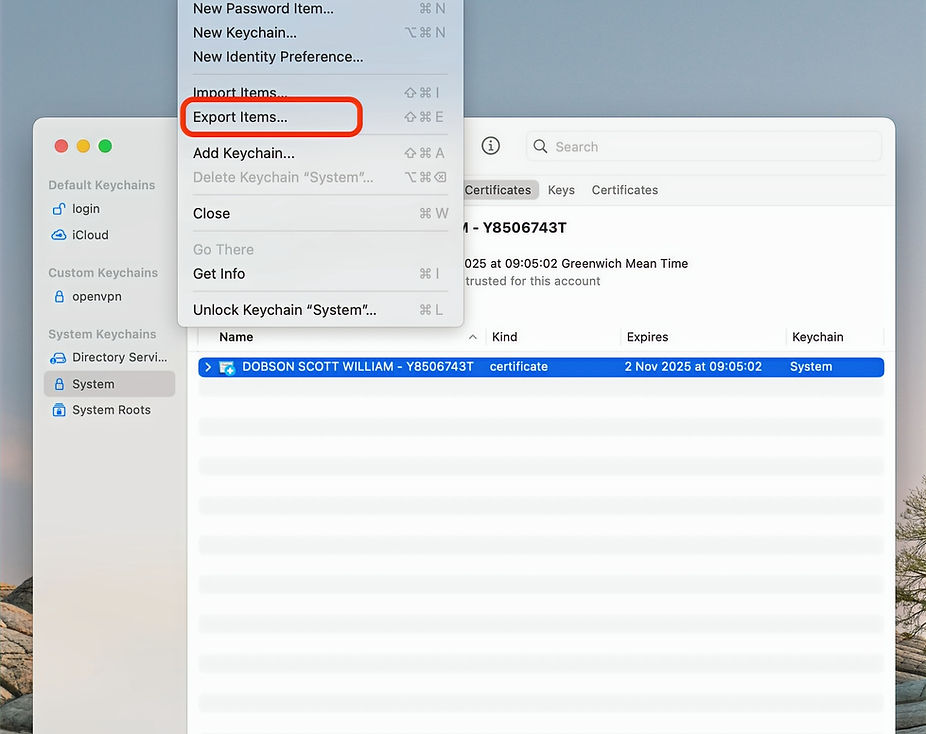
Click on the desired certificate.
Right-click on the certificate (or press Control and click).
Save the Certificate:
Choose a file format (usually .p12 or .pfx).
Select a location on your Mac to save the exported certificate file.
Give the file a descriptive name.
Set a Password (Optional but Recommended):
You'll be prompted to create a password to protect the exported certificate file.
This password will be required when you import the certificate into another application or device.
Click "OK" to finalize the export.
Importance of Exporting Digital Certificates
Exporting digital certificates is crucial for several reasons. It ensures that users can back up their certificates securely. This process is especially important for maintaining access to encrypted data and ensuring secure communications.
When users export their certificates, they can easily transfer them to other systems or applications. This flexibility is vital for maintaining workflows and ensuring that digital identities remain intact across different platforms.
Best Practices for Managing Digital Certificates
Regularly back up digital certificates to prevent loss due to system failures or accidental deletions.
Use Strong Passwords:
When exporting certificates, always use strong passwords to protect sensitive information.
Keep Certificates Updated:
Regularly check for updates or renewals for digital certificates to ensure they remain valid and secure.
Store exported certificates in secure locations to prevent unauthorized access.
Monitor Expiration Dates:
Keep track of expiration dates for all digital certificates to avoid disruptions in service.
By following these best practices, users can ensure that their digital certificates remain secure and functional.
Exporting digital certificates in both Windows 11 and macOS is a straightforward process. By following the outlined steps, users can easily back up their certificates and maintain secure operations. Understanding the importance of digital certificates and managing them effectively is essential for anyone relying on secure communications and data protection.
For more information on compliance and digital security, consider exploring resources that provide insights into best practices and legal requirements. This knowledge can empower users to make informed decisions about their digital security needs.
There is a phrase in the Spanish holiday rental industry that sounds like music to an owner’s ears: "The government portal is free." It’s a seductive idea. After all, the Spanish authorities (SES Hosp
At first glance, manual guest registration looks like a "free" task. You get a booking, you ask for the IDs, you log into the government portal, and you type in the details. It feels like a standard p